
Category: eTechTip

eTechTip

  • We all know MFA is important, but many users are expressing symptoms of “MFA fatigue”

    We all know MFA is important, but many users are expressing symptoms of “MFA fatigue”

    Multi-factor authentication, commonly called MFA, has become one of the most important protections a business can put in place. It helps stop attackers from getting into company accounts even when a password has been stolen, guessed, reused, or leaked in a breach. However, there is a real problem many businesses are running into: people are tired of MFA prompts.

    Employees are juggling email, Teams, payroll systems, accounting tools, CRMs, file sharing platforms, vendor portals, and remote access systems. When every app seems to ask for another code, another approval, or another phone notification, MFA can start to feel like a daily annoyance instead of an important security control.

    That frustration is understandable. But turning MFA off, weakening it, or only applying it to a few users is not the answer. The right answer is to build an MFA strategy that protects the business without making employees miserable. Passwords are no longer enough to protect business accounts. NIST notes that MFA adds protection by requiring more than just a username and password, using a combination of something you know, something you have, or something you are.

    For a small business, one compromised account can create a chain reaction. If an attacker gets into email, they may be able to reset passwords for other services, read invoices, impersonate executives, redirect payments, access sensitive files, or launch phishing attacks against clients and vendors. That is why MFA matters so much. It creates a second barrier between a stolen password and your business data.

    The problem is that not all MFA is equally strong. Microsoft has warned that traditional MFA methods like SMS codes, email one-time passcodes, and basic push notifications are becoming less effective against modern attackers, especially when attackers use phishing, social engineering, or MFA bombing to wear users down. In other words, the goal should not simply be “turn on MFA.” The goal should be to use the right kind of MFA in the right places.

    First let’s identify what we mean by “MFA fatigue”, MFA fatigue can mean two different things. first is normal user frustration. Employees get annoyed when they are prompted too often, especially if prompts feel random, repetitive, or disruptive.

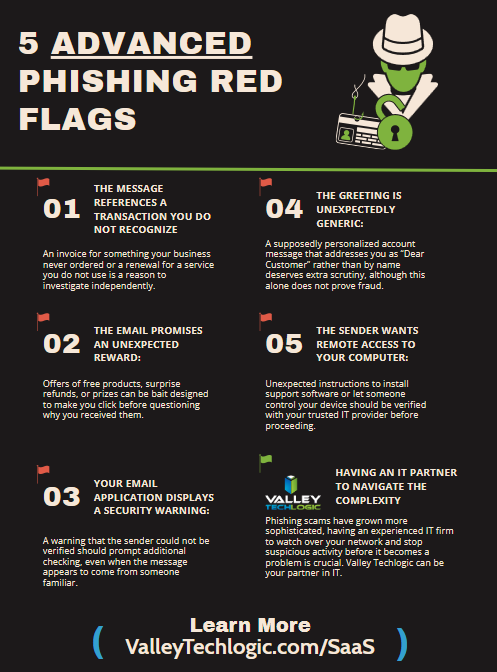
    The second is an actual attack technique. In an MFA fatigue or “push bombing” attack, a criminal already has the user’s password and repeatedly sends MFA approval prompts, hoping the user eventually taps “approve” just to make the noise stop. Microsoft specifically identifies user fatigue and MFA bombing as ways attackers bypass weaker authentication methods. This is why businesses need to treat MFA fatigue seriously. It is both a usability issue and a security issue.

    Some businesses technically have MFA enabled, but only in a limited or inconsistent way. That can create a false sense of security. Common issues include:

    • MFA is required for some employees but not all.
    • Admin accounts are not protected with stronger authentication.
    • Email-based MFA is used as the primary method.
    • SMS codes are allowed for sensitive accounts.
    • Employees receive push prompts without number matching or location context.
    • Legacy authentication methods are still allowed.
    • Former employees, contractors, or shared accounts are not reviewed.
    • MFA recovery processes are informal or undocumented.

    These gaps matter, attackers usually do not need access to every account. They only need access to one useful account. A compromised mailbox can lead to business email compromise, fraudulent payment requests, client impersonation, data theft, or ransomware. For businesses that work with regulated data, financial information, legal documents, healthcare information, or client confidential records, the risk is even higher.

    A good MFA strategy should be strong, simple, and consistent. It should protect the business while reducing unnecessary friction for users. First, require MFA for every user. MFA should not be limited to owners, managers, or employees who “handle sensitive information.” In a modern cloud environment, almost every account has some level of business risk.

    Second, prioritize stronger authentication methods. App-based MFA is better than SMS or email-based verification, but phishing-resistant methods are better still. Microsoft describes passkeys as phishing-resistant credentials that can serve as an MFA method, and notes that they can reduce prompts while improving security.

    For most small businesses, a practical MFA roll out path looks like this:

    1. Eliminate email-based MFA wherever possible.
    2. Move users to an authenticator app with number matching.
    3. Use passkeys or security keys for administrators, finance users, executives, and anyone with access to sensitive systems.
    4. Keep SMS only as a temporary fallback, not the preferred method.
    5. Document account recovery so users are not locked out when phones are replaced or lost.

    Microsoft also notes that number matching is critical to reducing accidental MFA approvals, especially as MFA fatigue attacks increase. The best MFA setup is not the one that prompts users constantly. The best setup is the one that prompts users when it actually matters.

    Small businesses can reduce MFA fatigue by using smarter access policies. For example, users may not need to be prompted every single time they access a trusted app from a managed device in a normal location. But they should absolutely be challenged when signing in from a new device, an unusual location, a risky session, or a sensitive admin portal. This is where conditional access policies can help. Instead of treating every login the same, conditional access allows the business to apply stronger controls based on risk.

    A good policy may consider:

    • Who the user is
    • What app they are accessing
    • Whether the device is trusted
    • Whether the sign-in location is expected
    • Whether the account has administrative privileges
    • Whether the session appears risky

    This gives employees a smoother daily experience while still applying stronger controls when the risk is higher. MFA is not just a technical setting. Employees need to understand what to do when they receive a prompt. The rule should be simple: never approve an MFA prompt you did not initiate.

    If an employee receives an unexpected MFA prompt, that may mean someone already has their password. They should deny the request and report it immediately. Users should not ignore it, approve it, or assume it is a glitch. Training does not need to be complicated. A short, clear explanation is usually enough:

    “MFA prompts should only appear when you are actively signing in. If you get a prompt you did not request, deny it and contact IT.” That one rule can stop a serious  incident.

    Also, Administrative accounts deserve extra protection. These accounts can often change security settings, reset passwords, access sensitive data, create new users, modify mail flow, and approve applications. For admin accounts, stronger MFA should be required. Passkeys, FIDO2 security keys, or other phishing-resistant methods are strongly preferred. NIST also recommends phishing-resistant authentication for sensitive applications and users with elevated privileges. Business owners, finance users, HR users, and anyone who can approve payments or access confidential client data should also be considered high-risk.

    Special consideration should also be taken when addressing new employees. MFA should be built into onboarding, role changes, and offboarding. When a new employee starts, they should be enrolled in the correct MFA method from day one. When someone changes roles, their access and authentication requirements should be reviewed. When someone leaves the company, their sessions should be revoked, their account should be disabled, and their access should be removed promptly.

    This is especially important for small businesses because responsibilities often overlap. One person may handle finance, HR, operations, and vendor relationships. That makes account security even more important.

    The bottom line is MFA fatigue is real. Employees are tired of excessive prompts, confusing login flows, and security tools that get in the way of work, but avoiding MFA is not a realistic option. The risk of account compromise, payment fraud, data theft, and business disruption is too high. The better approach is to modernize MFA. Require it consistently, move away from weaker methods, use phishing-resistant authentication where possible, reduce unnecessary prompts, and train users to recognize suspicious activity.

    Security should not feel like punishment. Done correctly, MFA can become a normal, low-friction part of doing business safely. If your business is still relying on passwords alone, email-based MFA, SMS codes, or inconsistent MFA policies, now is the time to review your setup. Valley Techlogic can help evaluate your current Microsoft 365 and cloud security configuration, identify gaps, and build an MFA strategy that protects your business without overwhelming your users. Learn more today with a consultation.

    This article was powered by Valley Techlogic, leading provider of trouble free IT services for businesses in California including Merced, Fresno, Stockton & More. You can find more information at https://www.valleytechlogic.com/ or on Facebook at https://www.facebook.com/valleytechlogic/ . Follow us on X at https://x.com/valleytechlogic

  • Children and online safety, how the issue with Roblox highlights the need for more oversight into online services aimed at kids

    Children and online safety, how the issue with Roblox highlights the need for more oversight into online services aimed at kids

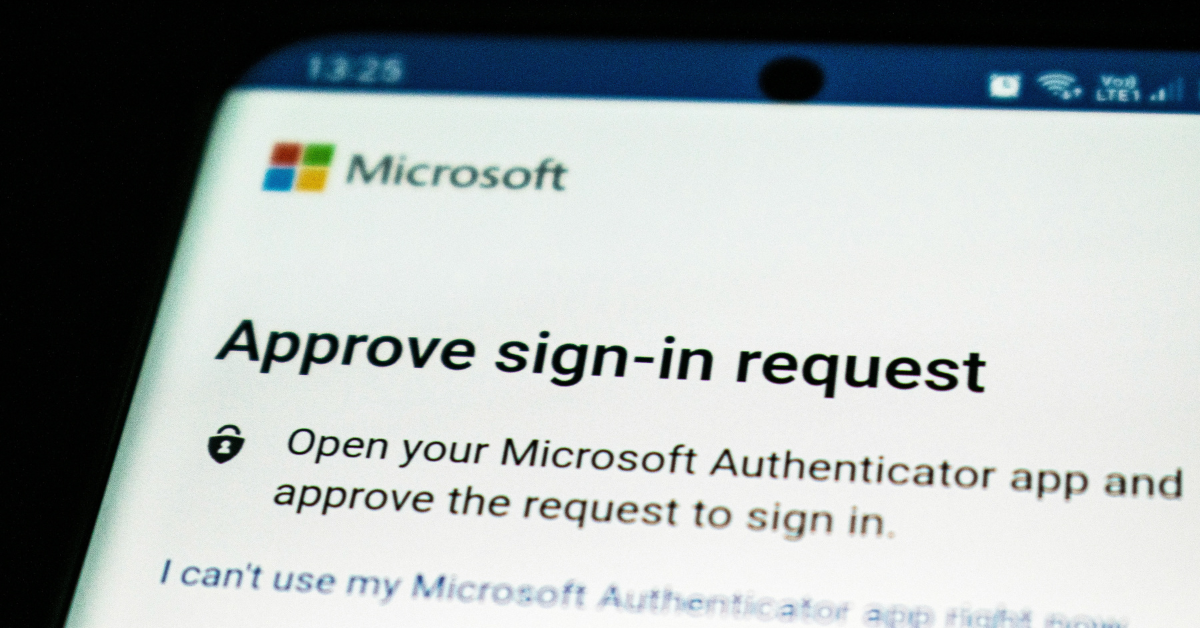
    With over a billion registered users (and 380 million active users as of 2024), Roblox propelled itself into the internet zeitgeist in 2006. Its blocky figures and endless options when it came to users customizing games and worlds to fit their imagination was particularly enticing to its core user base which is mostly comprised of children and teens.

    The game has faced controversy in the past, particularly with it’s paid-for currency system “Robux” with a class action lawsuit settled for $10 million in the form of refunds for users that felt ripped off by the online purchases made in the game and many instances of parents noticing their children had made purchases without their consent. Which to be clear is not the fault of the company but highlights the “pay to play” nature of some online platforms even those with a younger user base.

    However, they’ve been in the news recently for much darker allegations. It’s come to light that there are issues with the online platforms moderation when it comes to conversations being had with underaged users and the adults that also frequent the platform.

    Multiple lawsuits have been filed in multiple states alleging Roblox did not go far enough when it comes to protecting its underaged users from predators, with many instances coming to light of an adult engaging with a child online and luring that child to a real-life location where they were harmed.

    Concerned parents want to know what steps are being taken to ensure their children are not being “groomed” in a game that they believed was a safe space and child centric. The company has responded by denying the allegations but also announcing several new features aimed at combating “child endangerment conversations”. This includes using AI to verify conversations for malfeasance and doing more to verify users ages and separate or restrict conversations between adult and underage users.

    It is a mistake, in our opinion, to believe that any online space does not require a parent’s consistent oversight. YouTube’s platform for kids dubbed appropriately “YouTube Kids” made news for the creepy videos that proliferated channels hidden amongst benign children’s programming such as streams of Peppa Pig.

    TikTok, SnapChat and Facebook have also faced lawsuits over not protecting children from predators or having “addictive designs” that kept teens in particular looped into negative cycles involving self-harm or extreme content.

    We don’t believe there’s any online platform where a child should be left unattended, but there are steps you can take to make the internet safer for your children (after all, in today’s digital world avoiding it is difficult to impossible).

    Here are four practical steps parents can take to help protect their children online:

    1. Set Clear Rules and Expectations
      Establish age-appropriate guidelines for internet use. This can include setting screen time limits, deciding which apps and websites are allowed, and agreeing on times when devices must be put away (e.g., during meals or bedtime). Having open conversations about why these rules exist makes kids more likely to follow them.
    1. Use Parental Controls and Privacy Settings
      Take advantage of built-in parental controls on devices, browsers, and apps. These can help block inappropriate content, set time limits, and monitor activity. Make sure your child’s social media accounts are set to private, and review app permissions so personal information isn’t overshared.
    1. Teach Safe Online Behavior
      Educate children about not sharing personal details (like home address, school name, or phone number), being cautious about online friendships, and never meeting strangers in person. Encourage them to think critically about what they post, remind them that once something is online, it’s hard to fully remove.
    1. Stay Involved and Encourage Communication
      Keep an open line of communication so your child feels comfortable coming to you if they encounter something suspicious, scary, or uncomfortable online. Show interest in the games, apps, or websites they use, and when possible, spend time exploring the digital world together.

    At Valley Techlogic we believe in making the online world a safer place, including for the businesses we support and our clients. We will be posting free Back-To-School online safety tips on our Facebook and LinkedIn profiles for the month of September.

    If you’re California local and looking for IT support for your business, you can also learn more about our services through a free consultation today.

    Looking for more to read? We suggest these other articles from our site.

    This article was powered by Valley Techlogic, leading provider of trouble free IT services for businesses in California including Merced, Fresno, Stockton & More. You can find more information at https://www.valleytechlogic.com/ or on Facebook at https://www.facebook.com/valleytechlogic/ . Follow us on X at https://x.com/valleytechlogic and LinkedIn at https://www.linkedin.com/company/valley-techlogic-inc/.
  • What is a reply all “email storm” and how can you prevent it?

    What is a reply all “email storm” and how can you prevent it?

    In 2016 the UK’s National Health Service (NHS) experienced an email storm that crashed their email system and resulted in snowball effect of 168 million emails being sent in a short period of time.

    The cause? A new IT contractor for the company sent out a test email company-wide (the NHS employs 1.2 million people and 840 thousand of them received the test email). Many of them replied to it, wondering why they were receiving such an email using the “reply all” function and it snowballed from there into an email chain of epic proportions, an email storm.

    This email storm crashed their system and angered their employees. What they may not have known is that email storms have been occurring practically since email became the de facto method of communication for businesses around the world. The first one reported by major news and nicknamed “Bedlam” experienced by Microsoft occurred in 1997 resulted in 23 million emails sent in 7 hours, much less than the one experienced by the NHS but the amount of data generated by that storm (an estimated 295 gigabytes) was significant for the time period and the event was highly disruptive.

    Email storms have even hit US government entities like the state department and NASA, the latter of which practically led to the re-institution of the Cybersecurity and Infrastructure Security Agency (CISA) after it’s funding was cut by DOGE.

    So, you may be wondering, what does this have to do with you and your business? Well hopefully we’ve made it clear that email storms can happen to anyone, really at any time, and that they’re highly disruptive. The data generated by large email storms is not significantly different than the data generated by DDoS (Dedicated Denial of Service) attacks although it’s almost always an unintentional consequence of an employee or contractor sending a simple email company wide. What can you do as a business owner to prevent this from happening?

    1. Limit “Reply All” Permissions
    • What to do: Use email settings to restrict who can use the “Reply All” function, especially in large distribution lists.
    • Why it helps: Prevents unnecessary mass replies that trigger storms, especially when someone replies to hundreds or thousands of recipients.
    1. Use BCC for Large Email Lists
    • What to do: Add recipients to the BCC (blind carbon copy) field instead of the “To” or “CC” fields.
    • Why it helps: If people can’t see who else received the email, they can’t reply to everyone, avoiding the risk of a chain reaction.
    1. Implement Group Email Safeguards
    • What to do: Configure email servers (like Microsoft Exchange or Google Workspace) to throttle or block emails sent to large groups when too many replies occur in a short time.
    • Why it helps: Automated tools can detect a storm and shut it down before it escalates.

    While these common sense strategies can be enacted by anyone, managing email is a tricky topic overall. From setup to protections against spam or phishing, having a technology provider like Valley Techlogic can help you strategically create email policies that work and keep your business safe. Learn more today through a consultation.

    Looking for more to read? We suggest these other articles from our site.

    This article was powered by Valley Techlogic, leading provider of trouble free IT services for businesses in California including Merced, Fresno, Stockton & More. You can find more information at https://www.valleytechlogic.com/ or on Facebook at https://www.facebook.com/valleytechlogic/ . Follow us on X at https://x.com/valleytechlogic and LinkedIn at https://www.linkedin.com/company/valley-techlogic-inc/.

  • Staying secure on the 4th, why phishing attacks increase during holiday weekends

    Staying secure on the 4th, why phishing attacks increase during holiday weekends

    We’ve touched on this topic before, but we thought a reminder as we approach the Fourth of July weekend couldn’t hurt, hackers don’t take the holidays off.

    This includes summer holidays such as Memorial Day and the 4th of July in addition to the typical winter festivities. Bad actors know that the holidays can be a boon for their nefarious activities, employees may be less on guard as they look forward to the extra time off and routines are thrown off with a disruption to the normal M-F patterned workweek.

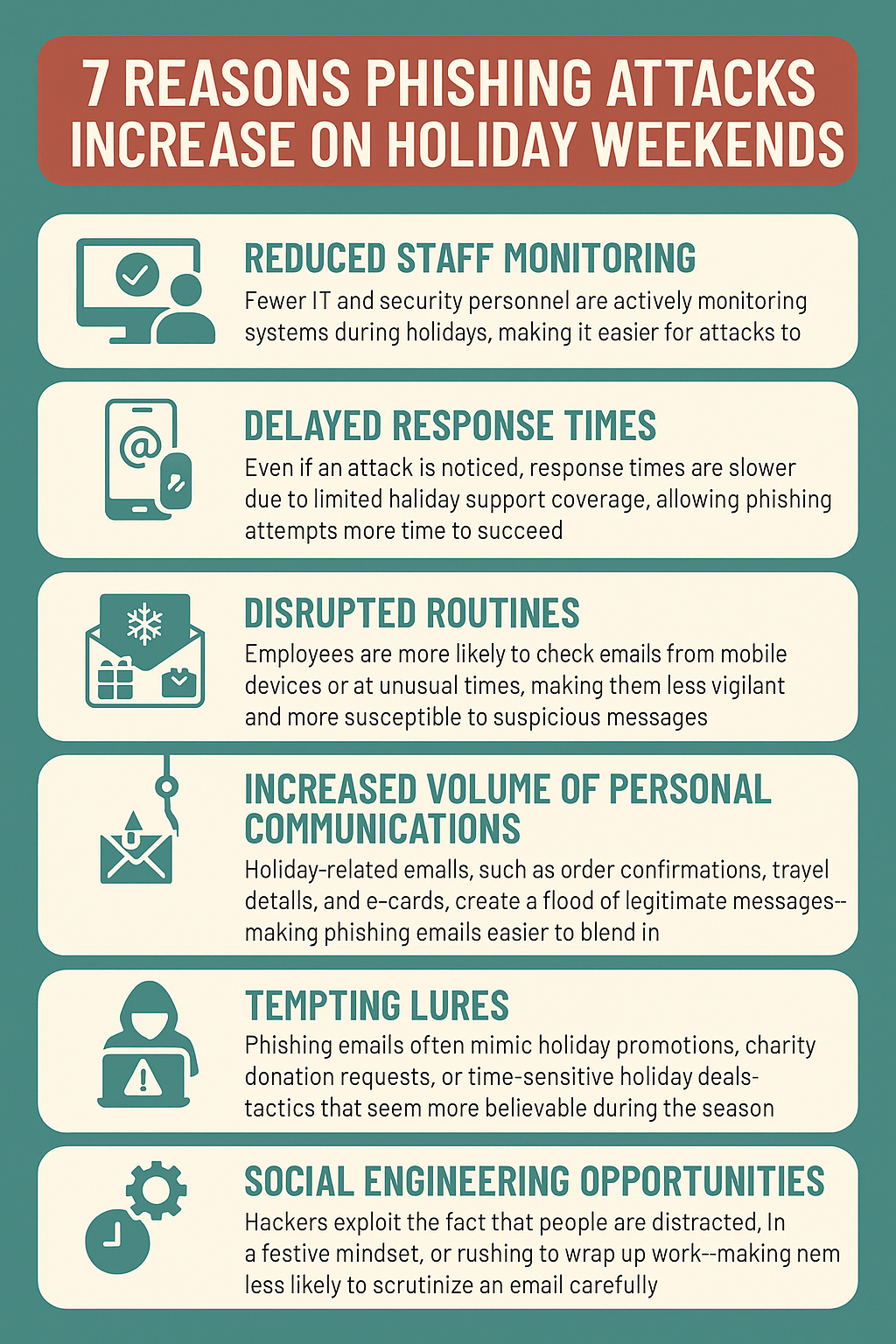
    Here are 7 ways the holidays lead to a higher risk of phishing attacks:

    • Reduced Staff Monitoring
      Fewer IT and security personnel are actively monitoring systems during holidays, making it easier for attacks to go undetected.
    • Delayed Response Times
      Even if an attack is noticed, response times are slower due to limited holiday support coverage, allowing phishing attempts more time to succeed.
    • Disrupted Routines
      Employees are more likely to check emails from mobile devices or at unusual times, making them less vigilant and more susceptible to suspicious messages.
    • Increased Volume of Personal Communications
      Holiday-related emails, such as order confirmations, travel details, and e-cards, create a flood of legitimate messages—making phishing emails easier to blend in.
    • Tempting Lures
      Phishing emails often mimic holiday promotions, charity donation requests, or time-sensitive holiday deals—tactics that seem more believable during the season.
    • Social Engineering Opportunities
      Hackers exploit the fact that people are distracted, in a festive mindset, or rushing to wrap up work—making them less likely to scrutinize an email carefully.
    • Gaps in System Updates
      Routine maintenance and updates might be paused during holidays, leaving systems more vulnerable to phishing-based exploits that rely on unpatched software.

    (Download these tips as an Infographic below.)

    Phishing attacks are one of the most common—and costly—cyber threats facing small businesses today. At Valley Techlogic, we help protect your business by implementing robust email security solutions, conducting employee phishing awareness training, and monitoring for suspicious activity around the clock. Our proactive approach ensures you’re not just reacting to threats but preventing them before they reach your inbox. Reach out today for more information.

    Looking for more to read? We suggest these other articles from our site.

    This article was powered by Valley Techlogic, leading provider of trouble free IT services for businesses in California including Merced, Fresno, Stockton & More. You can find more information at https://www.valleytechlogic.com/ or on Facebook at https://www.facebook.com/valleytechlogic/ . Follow us on X at https://x.com/valleytechlogic and LinkedIn at https://www.linkedin.com/company/valley-techlogic-inc/.

  • Fast fashion behemoth Shein got hit with a complaint alleging “dark patterns” manipulation, what are dark patterns?

    Fast fashion behemoth Shein got hit with a complaint alleging “dark patterns” manipulation, what are dark patterns?

    While already feeling the strain from strict tariffs mostly targeting China, Shein a leader in the fast fashion marketplace has been dealt another blow as the European Commission notified them recently of concerns that their website and app are manipulating shoppers with the use of so called “dark patterns”. What does this mean?

    Dark patterns or deceptive patterns are tricks used by websites and applications that are designed to get shoppers to do something they didn’t intend to do. Like signing up for a service, rushing them to check out before they’re ready, and trick wording as it relates to fees, data and more.

    One notable case of dark patterns manipulation resulting in a penalty to a company utilizing such practices is the case of Epic Games (famed Fortnite developer) vs the FTC (Federal Trade Commission). The FTC ordered Epic Games to pay a fine of $245 million for claims that the company tricked players into making unwanted purchases (including children purchasing without their parents knowledge or consent).

    So, what are some examples of dark patterns and how can consumers avoid them (and what recourse do you have if you think you’ve fallen victim)?

      1. Roach Motel
      • Description: Easy to sign up for a service but hard to cancel.
      • Example: Subscriptions that require calling customer service to cancel, even though you can sign up online instantly.
      1. Confirmshaming
      • Description: Guilt-tripping users into opting into something.
      • Example: A popup with options like:
        • ✅ “Yes, I want to save money”
        • ❌ “No, I prefer to pay full price”
      1. Hidden Costs
      • Description: Extra fees are added just before purchase.
      • Example: Tickets or online shopping carts that show a low price initially, but tack on fees or shipping costs at the last step.
      1. Forced Continuity
      • Description: Free trials that automatically turn into paid subscriptions without clear notice or reminders.
      • Example: You sign up for a “free 7-day trial,” but you’re billed automatically because you weren’t warned clearly or reminded.
      1. Trick Questions
      • Description: Wording that confuses users, often in checkboxes.
      • Example: “Uncheck this box if you do not want to receive marketing emails.”
      1. Preselected Options
      • Description: Options like add-ons or newsletter subscriptions are pre-ticked to push users toward choosing them.
      • Example: During checkout, boxes are already checked to add extra products or insurance.
      1. Bait and Switch
      • Description: The user sets out to do one thing, but something else happens.
      • Example: Clicking a “Download” button that installs unrelated software or takes you to a different page.
      1. Disguised Ads
      • Description: Ads that look like navigation buttons or content.
      • Example: A “Download” ad styled to look like a software download button on a file-sharing site.
      1. Nagging
      • Description: Constant prompts or interruptions that push you to complete a certain action.
      • Example: Apps that repeatedly prompt for a review or to enable notifications after you’ve already declined.
      1. Privacy Zuckering
      • Description: Tricking users into publicly sharing more information than they intended.
      • Example: Facebook-like settings where posts default to “Public” unless you explicitly change them.

    If you think you’ve encountered (or fallen victim) to any of these examples of dark patterns, you can report the website or application either via your State Attorney General, through the FTCs fraud division at ReportFraud.ftc.gov, or to the Consumer Financial Protection Bureau (CFPB) at 855-411-CFPB (2372).

    At Valley Techlogic we are staunch advocates for increased consumer awareness when it comes to online safety, and SAT (Security Awareness Training) is an included feature in all of our technology support plans. If you’re a California business owner and would like to learn more schedule a consultation with us today.

    Looking for more to read? We suggest these other articles from our site.

    This article was powered by Valley Techlogic, leading provider of trouble free IT services for businesses in California including Merced, Fresno, Stockton & More. You can find more information at https://www.valleytechlogic.com/ or on Facebook at https://www.facebook.com/valleytechlogic/ . Follow us on X at https://x.com/valleytechlogic and LinkedIn at https://www.linkedin.com/company/valley-techlogic-inc/.

  • Is Starlink still the best choice for rural or remote internet? We discuss your options for internet in 2025

    Is Starlink still the best choice for rural or remote internet? We discuss your options for internet in 2025

    If you’re in a more rural or remote location, internet options can be scant even in 2025. Even in a state as populous as California there are still areas that do not have access to cable or fiber internet and the cost to establish it can be exorbitant. Your city may even have cable available but due to your own buildings location the cost burden of establishing the “last mile” connection (IE the one to your building directly) can be placed on the customer. This cost can be in the many thousands of dollars.

    Aside from cable or fiber options, many rural or remote customers turn to DSL or 4G internet options which can get you online but may not have the bandwidth to facilitate adequate backups if you utilize a cloud solution.

    This is where Starlink has had the edge, Starlink can get speeds comparable to cable (up to 220 Mbps) and business class customers receive priority support. The increased speeds and customer support does come at a cost, with their business plans starting at $165 per month and the kit that includes the satellite dish starting at $599.

    Still, there are a lot of considerations when choosing an ISP (internet service provider) for your business. Below are the five main options for internet for your business:

    1. Fixed Wireless Internet
    • How it works: Internet is beamed from a tower to an antenna installed at the user’s location.
    • Pros: Faster than satellite, low latency, suitable for video streaming and remote work.
    • Cons: Requires line of sight to the tower; speed can vary by weather or terrain.
    • Best for: Areas within range of a local wireless provider.
    1. Satellite Internet (e.g., Starlink, HughesNet, Viasat)
    • How it works: Internet is delivered via satellite to a dish on the user’s property.
    • Pros: Available virtually anywhere; great for very remote areas.
    • Cons: Higher latency (though Starlink is improving this), data caps, can be costly.
    • Best for: Extremely rural or mountainous regions with no other infrastructure.
    1. DSL (Digital Subscriber Line)
    • How it works: Delivered via existing telephone lines.
    • Pros: Widely available in older rural areas, affordable, no special equipment needed.
    • Cons: Slower speeds than cable or fiber; signal weakens over distance.
    • Best for: Areas with old telephone infrastructure but no cable/fiber.
    1. Cellular Internet / Mobile Hotspots (e.g., Verizon, AT&T, T-Mobile)
    • How it works: Uses 4G/5G signals via a mobile device or dedicated hotspot.
    • Pros: Portable, easy to set up, faster than satellite in strong coverage areas.
    • Cons: Limited by data caps or throttling; reliant on cell signal strength.
    • Best for: Users in areas with decent mobile coverage but no wired options.
    1. Wired Cable Internet
    • How it works: Internet is delivered through coaxial cable infrastructure, often alongside TV service.
    • Pros: Fast and reliable with higher speeds than DSL or satellite; typically includes unlimited data.
    • Cons: Availability is limited in rural areas; installation can be expensive if the infrastructure isn’t already present.
    • Best for: Rural towns or neighborhoods where cable lines have already been laid or are close by.

    If you need assistance in navigating internet service for your business or anything else in the technology space, reach out to Valley Techlogic for a consultation today.

    Looking for more to read? We suggest these other articles from our site.

    This article was powered by Valley Techlogic, leading provider of trouble free IT services for businesses in California including Merced, Fresno, Stockton & More. You can find more information at https://www.valleytechlogic.com/ or on Facebook at https://www.facebook.com/valleytechlogic/ . Follow us on X at https://x.com/valleytechlogic and LinkedIn at https://www.linkedin.com/company/valley-techlogic-inc/.

  • 5 Ways A Managed Service Provider Helps You Predict Future Technology Spending

    5 Ways A Managed Service Provider Helps You Predict Future Technology Spending

    Managing technology costs can feel like trying to hit a moving target, especially when you’re balancing growth, compliance, and the need to stay competitive. That’s where we come in. As your trusted IT partner, we don’t just keep your systems running – we help you look ahead and plan smarter.

    Here are five ways a managed service provider like Valley Techlogic helps businesses like yours predict and manage future technology spending:

    1. We Map Out Your Technology Lifecycle

    From aging laptops to outdated software, every technology asset has a lifespan. At Valley Techlogic, we actively track the condition and performance of your IT equipment and applications. We’ll let you know well in advance when it’s time to replace or upgrade, allowing you to spread out costs and avoid unexpected failures or downtime.

    Real-World Example: Instead of replacing 20 employee devices all at once, we’ll help you stagger replacements over several months, keeping your team productive and your budget balanced.

    1. We Monitor Usage Trends to Forecast Growth

    We use powerful monitoring tools to analyze your IT usage across cloud services, licenses, bandwidth, and storage. This allows us to identify growth trends and project when additional resources will be needed, before they affect your operations or budget.

    Real-World Example: If your Microsoft 365 OneDrive storage is steadily climbing, we’ll alert you before you hit your plan’s limit, and help you prepare for the next tier, avoiding surprise charges.

    1. We Build Strategic IT Roadmaps Just for You

    At Valley Techlogic, we believe your technology should align with your business goals. That’s why we create detailed IT roadmaps tailored to your growth plans. Whether you’re expanding locations, migrating to the cloud, or upgrading your cybersecurity posture, we’ll outline the timeline, strategy, and associated costs so you can plan ahead.

    Real-World Example: Planning to open a new office? We’ll map out all your infrastructure needs, from network installation to secure connectivity, and give you a budget you can bank on.

    1. We Help You Stay Ahead of Vendor Pricing Changes

    Keeping track of software licenses, vendor contracts, and pricing changes can be overwhelming. We manage those vendor relationships for you and stay ahead of any cost increases. We’ll alert you to renewals, help negotiate better deals, and recommend alternatives when appropriate.

    Real-World Example: If your VoIP vendor plans a 20% price hike, we’ll let you know early and offer options like renewing ahead of the increase or switching to a more affordable solution we’ve already vetted.

    1. We Identify Risks That Could Lead to Costly Surprises

    Reactive IT spending often stems from a lack of foresight around risks like cybersecurity gaps or compliance issues. Through regular assessments, Valley Techlogic identifies vulnerabilities and provides proactive solutions. Addressing these risks now can save your business from unexpected fines, breaches, or data loss.

    Real-World Example: We’ve helped clients avoid costly ransomware incidents by spotting outdated firewall configurations and implementing stronger security protocols, before attackers could strike.

    At Valley Techlogic, we don’t just support your technology we help you strategically manage it. With our proactive approach, you’ll always have a clear view of what’s ahead and how to budget for it.

    Ready to take the guesswork out of your IT spending? Contact us today and let’s plan your technology future together.

    Looking for more to read? We suggest these other articles from our site.

    This article was powered by Valley Techlogic, leading provider of trouble free IT services for businesses in California including Merced, Fresno, Stockton & More. You can find more information at https://www.valleytechlogic.com/ or on Facebook at https://www.facebook.com/valleytechlogic/ . Follow us on X at https://x.com/valleytechlogic and LinkedIn at https://www.linkedin.com/company/valley-techlogic-inc/.
  • 5 Signs It’s Time to Switch Your IT Provider (And How to Choose the Right One)

    5 Signs It’s Time to Switch Your IT Provider (And How to Choose the Right One)

    Choosing the right IT managed service provider for your business is a tricky topic, your existing provider has access to sensitive systems and knows your business inside and out. If things aren’t going as well as they could (should) it can still feel overwhelming to think about switching. We know just how difficult switching IT providers can be (we even wrote a guide on it).

    Even though it’s challenging, there are some clear-cut signs it might be time to make a change. The five topics below are what we consider red flags:

    1. Constant Downtime and Slow Response
      • Frequent outages, slow systems, delayed ticket responses.
      • Impact on productivity and customer trust.
    2. Recurring Security Issues
      • Unpatched systems, repeated cyber incidents, lack of proactive security.
      • The cost of poor cybersecurity.
    3. Lack of Strategic Guidance
      • Your provider only “keeps the lights on” but doesn’t help you plan.
      • No roadmap for scaling, cloud adoption, or improving efficiency.
    4. Surprise Costs and Lack of Transparency
      • Hidden fees, unclear service levels, unpredictable billing.
      • Why predictable costs matter.
    5. Poor Communication and Customer Service
      • Hard-to-reach support, no regular updates, poor explanation of issues.
      • The value of clear and proactive communication.

    If your current IT managed service provider ticked any of these boxes, it might be time to begin the search for a new provider.  Below are four things we would recommend (as an IT managed service provider ourselves) you dive into with any potential new provider.

    1. Look for Proven Experience: Certifications, client references, industry expertise.
    2. They Prioritize Security and Compliance: Ask about their approach to cybersecurity and regulatory needs.
    3. Demand Proactive Support: Look for providers who offer monitoring, patching, and recommendations—not just break-fix.
    4. Check for Transparent Pricing: Make sure you understand their pricing models and what’s included.

    Ending services with your existing provider might seem scary, but in our experience most IT managed service providers want to do right by their clients (even if that client is on their way out). In our 20 plus years of experience, we have never had the incumbent provider block our ability to service their former client. Again, we have a guide on this very topic that goes into more detail and even provides a template ending your services with your existing provider.

    If you’re in the market for new IT services to support your business, Valley Techlogic has been supporting California businesses since 2004 and we can support you in whatever stage of your search you’re in. From procuring new services to providing an assessment on your current technical environment – our technicians are ready to support your business today.  Learn more with a consultation.

    Looking for more to read? We suggest these other articles from our site.

    This article was powered by Valley Techlogic, leading provider of trouble free IT services for businesses in California including Merced, Fresno, Stockton & More. You can find more information at https://www.valleytechlogic.com/ or on Facebook at https://www.facebook.com/valleytechlogic/ . Follow us on X at https://x.com/valleytechlogic and LinkedIn at https://www.linkedin.com/company/valley-techlogic-inc/.

  • Out of file space? 8 space saving tips for your PC or laptop

    Out of file space? 8 space saving tips for your PC or laptop

    Nothing is worse than going to download a file and realizing you don’t have the space on your computer, prompting the need to go through and delete files you don’t need any more or uninstalling programs you don’t use any more.  It can be a big hassle.

    That’s why today we have 8 space saving tips that will help you clean up some additional extra space on your computer so you can proceed with saving files unimpeded:

    1. Uninstall Unused Programs
      As we mentioned above, step one is to go through installed apps and remove software you no longer use—especially large programs or trial software that came pre-installed.
    2. Empty the Recycle Bin
      Files in the Recycle Bin still occupy storage. Make sure to permanently delete them by right clicking on your recycle bin to “empty” it.
    3. Clear Temporary Files and Cache
      Use built-in tools like Disk Cleanup (Windows) or Storage Management (macOS) to remove temp files, browser cache, and system logs.
    4. Delete Duplicate Files
      Use duplicate file finder software to scan and remove unnecessary duplicates—photos, documents, and downloads often pile up.
    5. Move Files to External or Cloud Storage
      Offload large files like videos, photos, and archives to an external hard drive or cloud storage like OneDrive or Google Drive.
    6. Clean Up Downloads and Desktop Folders
      These folders often become cluttered with large or forgotten files. Organize or delete items you no longer need.
    7. Compress Large Files
      For files you need to keep but don’t use often, compress them into ZIP or RAR formats to save space.
    8. Disable Hibernation (Windows only)
      Hibernation can take up gigabytes of space. If you don’t use it, disable it via Command Prompt to reclaim disk space. To disable hibernation in Windows 11, open Command Prompt as an administrator and type powercfg.exe /hibernate off. Press Enter, and hibernation will be disabled. This will also delete the hiberfil.sys file.

    Followed these tips but computer space is still an issue? It might be time to upgrade your devices’ storage, or if you have an older device replace it entirely. Many older laptops/desktops have hard drives that were typical for the time but much smaller than the capacity of newer devices. We recommend (at minimum) 1 Terabyte of storage space for modern devices in 2025.

    Valley Techlogic offers procurement assistance to our clients, we can address your file storage needs (including backups which are included in all of our service plans). Learn more about how Valley Techlogic can assist your business with your technology needs today.

    Looking for more to read? We suggest these other articles from our site.

    This article was powered by Valley Techlogic, leading provider of trouble free IT services for businesses in California including Merced, Fresno, Stockton & More. You can find more information at https://www.valleytechlogic.com/ or on Facebook at https://www.facebook.com/valleytechlogic/ . Follow us on X at https://x.com/valleytechlogic and LinkedIn at https://www.linkedin.com/company/valley-techlogic-inc/.

  • Make the Most of Your Microsoft 365 Subscriptions: 7 Productivity Hacks You Might Be Missing

    Make the Most of Your Microsoft 365 Subscriptions: 7 Productivity Hacks You Might Be Missing

    Microsoft 365 is packed with powerful tools designed to help businesses stay productive, collaborative, and organized—but many users barely scratch the surface of what’s available. If you’re only using Microsoft 365 for email and basic file storage, you’re likely leaving a lot of value on the table.

    Here are 7 productivity hacks to help you get the most out of your Microsoft 365 subscription:

    1. Use Microsoft Search to Navigate Faster

    Microsoft Search is a powerful, built-in tool across Outlook, OneDrive, SharePoint, and Teams that helps you quickly find emails, files, conversations, and even people in your organization. Instead of digging through folders or threads, type a keyword into the search bar—Microsoft Search will pull relevant results instantly from across all connected apps.

    Pro Tip: You can even search using natural language—like “files shared by John last week”—to find what you need faster.

    1. Streamline Repetitive Tasks with Power Automate

    Power Automate (formerly Microsoft Flow) lets you create custom workflows between apps to save time and reduce manual work. You can automate common tasks like saving email attachments to OneDrive, posting Teams alerts when a SharePoint list is updated, or sending approval requests.

    Example: Set up a flow to automatically notify your team in Teams when a new file is uploaded to a project folder.

    1. Collaborate in Real-Time with Co-Authoring

    Microsoft 365 makes real-time collaboration seamless. Whether you’re in Word, Excel, or PowerPoint, multiple users can work on a document at the same time. Changes are saved automatically and version history lets you review or restore earlier versions with ease.

    Bonus: Use @mentions in comments to get a colleague’s attention instantly.

    1. Organize Your Thoughts with OneNote

    OneNote is the hidden gem of Microsoft 365. Use it to capture meeting notes, brainstorming ideas, project plans, and more. Notebooks are searchable, can be shared across your team, and sync across all your devices.

    Use Case: Create a shared notebook for your team to store agendas, meeting recaps, and to-do lists in one central place.

    1. Turn Emails into Tasks with Microsoft To Do and Outlook Integration

    If your inbox is your to-do list, Microsoft To Do can help bring order to the chaos. With seamless integration into Outlook, you can flag emails to automatically turn them into actionable tasks.

    Tip: Use the My Day feature in To Do to focus only on what you need to accomplish today.

    1. Secure Your Data with Built-In Tools

    Microsoft 365 comes with strong security features that are often underused. Data Loss Prevention (DLP), sensitivity labels, and multi-factor authentication (MFA) can all help keep your data protected without requiring advanced setup.

    Security Tip: Admins should regularly review security and compliance reports in the Microsoft 365 Security Center to stay ahead of potential issues.

    1. Integrate Third-Party Apps into Teams

    Microsoft Teams isn’t just for chat and video calls—it’s a hub for productivity. You can integrate hundreds of apps directly into your Teams channels, from project management tools like Trello and Asana to CRM systems and custom Power Apps.

    Efficiency Hack: Pin your most-used apps to the sidebar for easy access during daily work.

    Whether you’re a power user or just getting started, Microsoft 365 has tools to help you work smarter—not harder. With a little exploration and some setup, you can automate workflows, improve collaboration, and protect your data—all within the apps you already use.

    Need help unlocking Microsoft 365’s full potential for your team? Contact Valley Techlogic today and let’s optimize your digital workspace together.

    Looking for more to read? We suggest these other articles from our site.

    This article was powered by Valley Techlogic, leading provider of trouble free IT services for businesses in California including Merced, Fresno, Stockton & More. You can find more information at https://www.valleytechlogic.com/ or on Facebook at https://www.facebook.com/valleytechlogic/ . Follow us on X at https://x.com/valleytechlogic and LinkedIn at https://www.linkedin.com/company/valley-techlogic-inc/.