On July 14, 2021, Microsoft held their annual Inspire summit, a conference for Microsoft partners to be given inside information about what the year ahead will look like in the world of Microsoft products and how they can leverage changes and features for their clients.
This year’s event issued in some big changes, all aimed at what Microsoft has dubbed the “Hybrid Workplace”. It’s clear Microsoft is betting that remote work is here to stay, at least partially.
While Teams and it’s various new and exciting integrations seemed to take center stage in the event offerings, we want to talk about another massive announcement – Windows 365.
Microsoft is going all in on cloud computing with Windows 365, and while it won’t be replacing Azure Virtual Desktop which will still be a staple in enterprise applications especially where security is especially crucial – it will offer extreme flexibility for businesses with a remote or hybrid workforce.
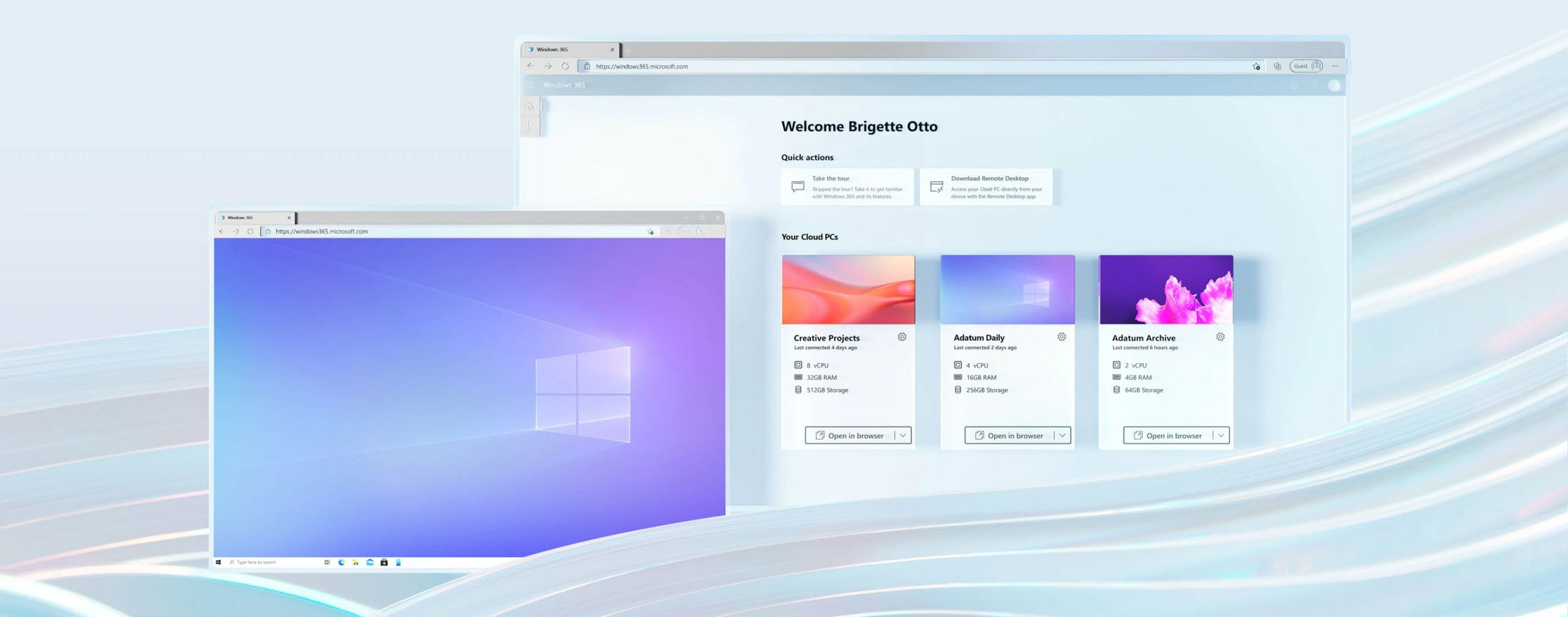
In the product demo we attended we were shown Windows 365 machines will be capable of lightning-fast data speeds across Microsoft’s networks. Users will also be given the ability to adapt the virtual computer on the fly from an easy to use and navigate interface that let’s you manage all of your active Windows 365 subscriptions.
They will even offer recommendations based on the usage on these virtual desktops. For example, if one user is always running out of RAM you can perform the upgrade right then and there, instantly.
The models pricing will be based on use and the virtual computers specs, but pricing hasn’t been made available yet. These virtual desktops will even have the option of including all of Microsoft 365’s product offerings such as Outlook, Excel, Word and more.
The most intriguing part Isn’t just the functionality of these desktops, which looks impressive. It’s the flexibility of just where and how you use them.
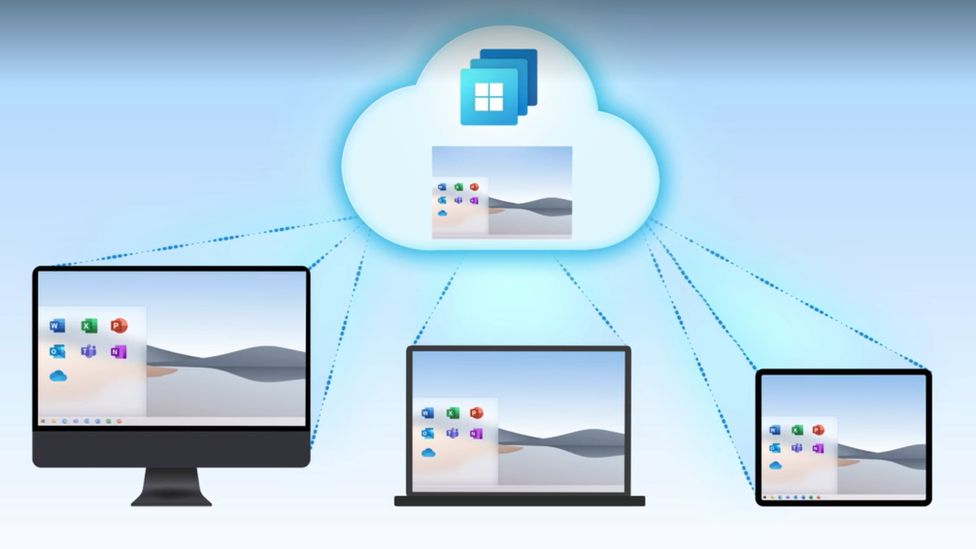
Windows 365 can purportedly be used across devices, that means not just laptops and desktops but even smart phones and tablets. You can use the web client but there’s also a browser option which could be a game changer for those with slow or unreliable internet connection speeds.
If you think security features are limited to Azure Virtual Desktop you would also be wrong, Windows 365 will have two factor authentication built in and allow you to tie the virtual machine instance to the user’s phone. When they go to log in they will be prompted to allow the login via the registered phone. This is a necessary aspect for business’s who have been struggling to implement cybersecurity features in their business, especially when it comes to their remote workforce.
Their Windows 365 virtual desktop will also be cross platform and save the user’s instance. If your employee is working from home three days a week and from the office two days a week, they can use their virtual desktop to remain on track because their work will be saved and ready to go no matter where they are logging in from.
At Valley Techlogic we have long been a proponent of cloud computing and have implemented creative cloud solutions for our clients. We are excited to see where Windows 365 is going and to have the chance to bring this offering to our customers.
Are you looking to implement Windows 365 or other cloud offerings such as backups in your business? Valley Techlogic is a dedicated Microsoft partner, and creator of the triple layer backup program TechVault. Schedule a consultation today to learn more.
Looking for more to read? We suggest these tech articles from the last week.
-
Google boss Sundar Pichai warns of threats to internet freedom – BBC News
-
Scientists obtain magnetic nanopowder for 6G technology – Phys
-
Apple Reveals Ground-Breaking New iPhone Technology – Forbes
-
Twitter is shutting down Fleets, its expiring tweets feature – The Verge
-
Spike in “Chain Gang” Destructive Attacks on ATMs – Krebs on Security
This article was powered by Valley TechLogic, an IT service provider in Atwater, CA. You can find more information at https://www.valleytechlogic.com/ or on Facebook at https://www.facebook.com/valleytechlogic/ . Follow us on Twitter at https://x.com/valleytechlogic.



 you use? Often we get stuck in a rut and don’t really explore what else may be out there. Your favorite tried and true software or add on has never let you down, right?
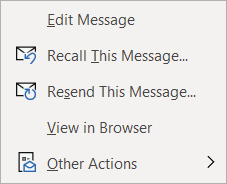 Message tab on the ribbon, click on the Action button and then click on Recall Email, if the recipient hasn’t opened the email yet it will be recalled and you can try again.